How to use the Bluetooth (eLPA) card reader
A step-by-step guide to the 9eSIM eLPA Bluetooth card reader and its WeChat mini program — for phones that don't support eSIM natively.
The 9eSIM eLPA WeChat mini program works with our eLPA tool — a hardware card reader we built for phones that don't support eSIM natively.
eLPA mini program user guide
Step 1 — Power the reader
Power the eLPA tool with a DC 5V supply over a USB-C cable.
Step 2 — Open the mini program
Scan the mini-program QR code below in WeChat.

Step 3 — Connect
Open the main screen. Pull down to refresh, or tap the eLPA icon — it will find and connect to the reader automatically.
Note: Bluetooth and Location permissions must be enabled.
Step 4 — (Optional) Set up Wi-Fi
You only need this if you want to download a profile from a mobile operator directly through the reader. Choose an available access point (AP) for the eLPA tool — only 2.4 GHz Wi-Fi is supported. This can be your home router or your phone's hotspot. Enter the SSID and password, tap Set to save it to the reader, and tap Get to read back the reader's current AP. When the Wi-Fi indicator turns green, the reader is connected.
If you only use the reader to manage the profiles already on your removable eSIM, you can skip this step.
Note: again, only 2.4 GHz Wi-Fi is supported.
Step 5 — Refresh profiles
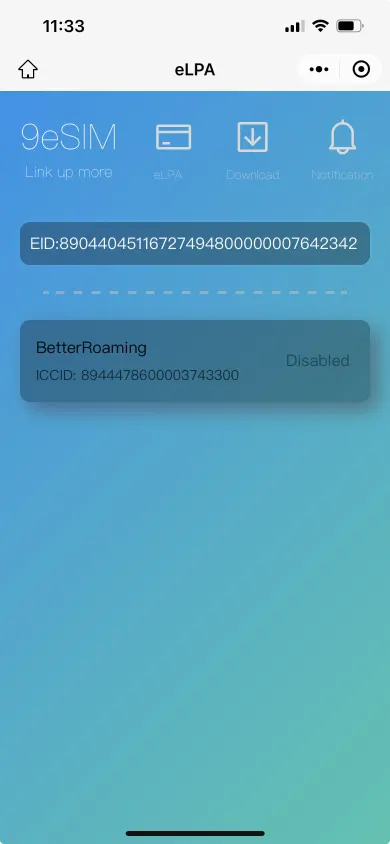
Back on the main screen, pull down to refresh the profile list and eSIM information. (Don't do this too quickly — about a 10-second interval is recommended.)
Long-press a profile to toggle it (enable or disable). You can also swipe left for the same options, plus a hidden Delete action. Be careful when deleting — a deleted profile cannot be recovered, and most operators don't allow an eSIM activation QR code to be downloaded twice.
Step 6 — Process notifications
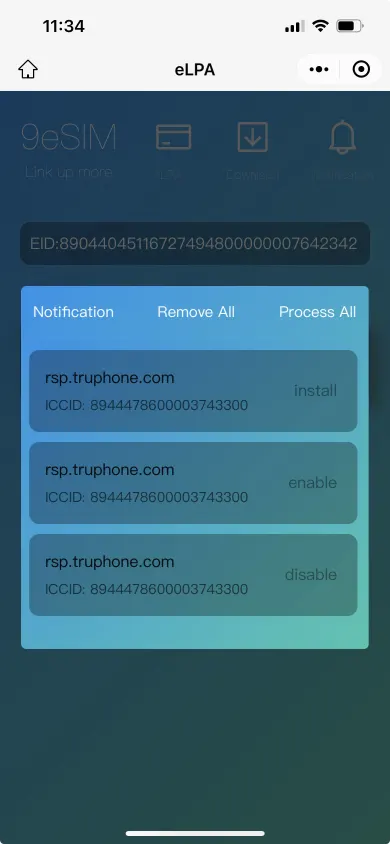
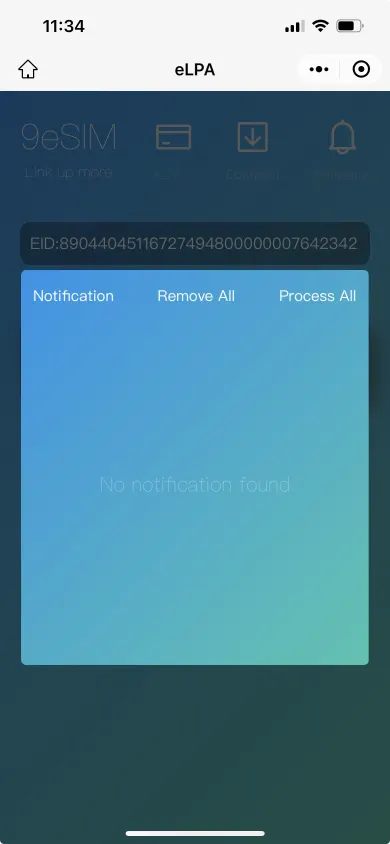
For now, notifications must be processed manually (we plan to automate this). After you download, install, enable or disable a profile, process and then clear the notification — otherwise it takes up storage space.
Tap Notification to load the notifications from your eSIM, then tap Process All, then Remove All.